One size setting, many images
Choose a target width or a percentage and apply it to up to 30 images in one batch. Each file is processed in your browser.
One image or a whole folder. Resize them all in seconds, right in your browser.
Select multiple images at once, or add more later
JPG, PNG or WebP · Up to 30 images, 20 MB eachSkip the one-at-a-time routine.
Get your images ready together.
No uploads, no stored copies.
Everything happens on your device.
Meet AI-powered image upscaling
Choose a target width or a percentage and apply it to up to 30 images in one batch. Each file is processed in your browser.
The height follows each image’s original aspect ratio. Export as JPG, PNG or WebP, then download individually or together as a ZIP.
This tool changes pixel dimensions. Ordinary enlargement does not recreate detail; use compression when your main requirement is a smaller file size.
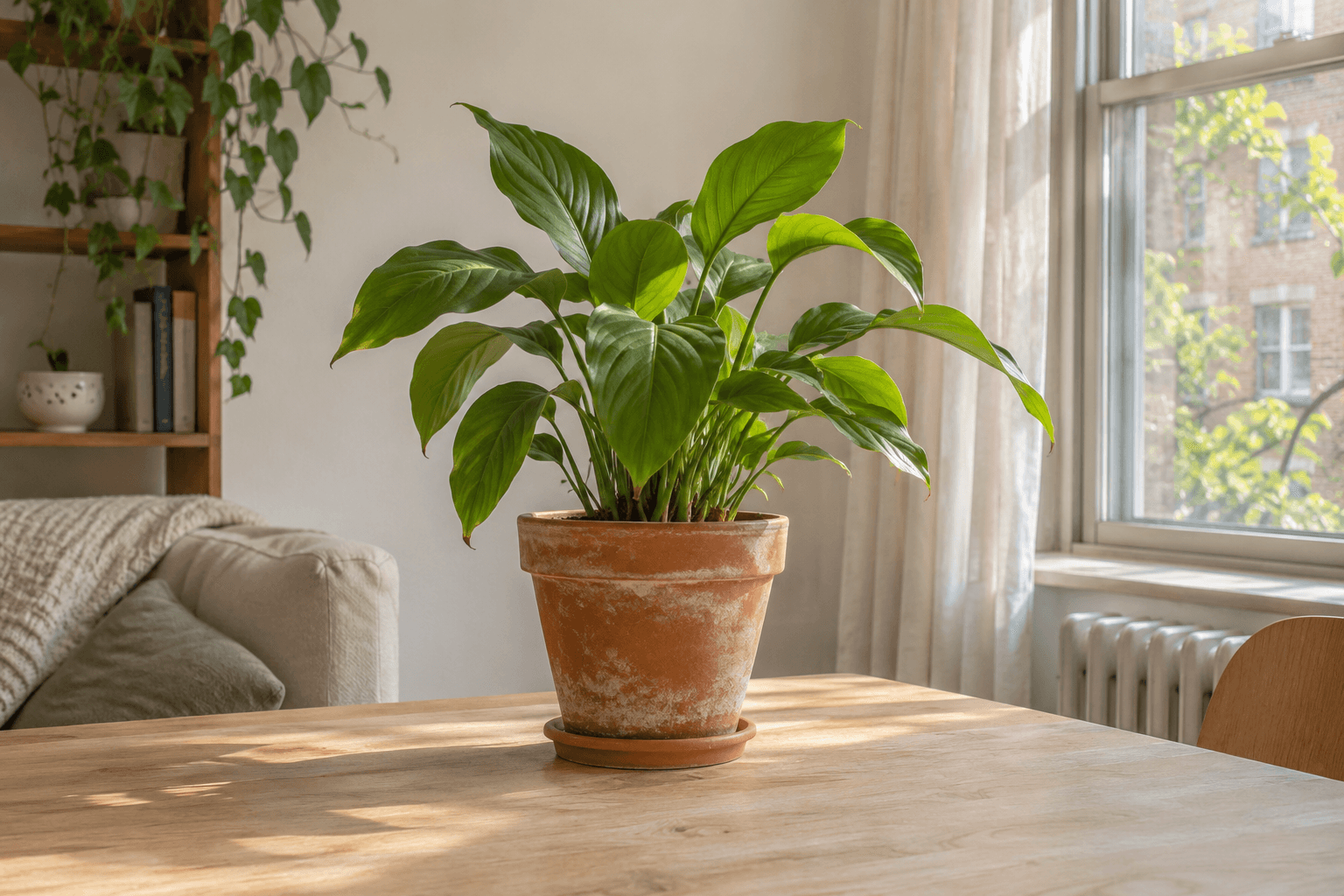
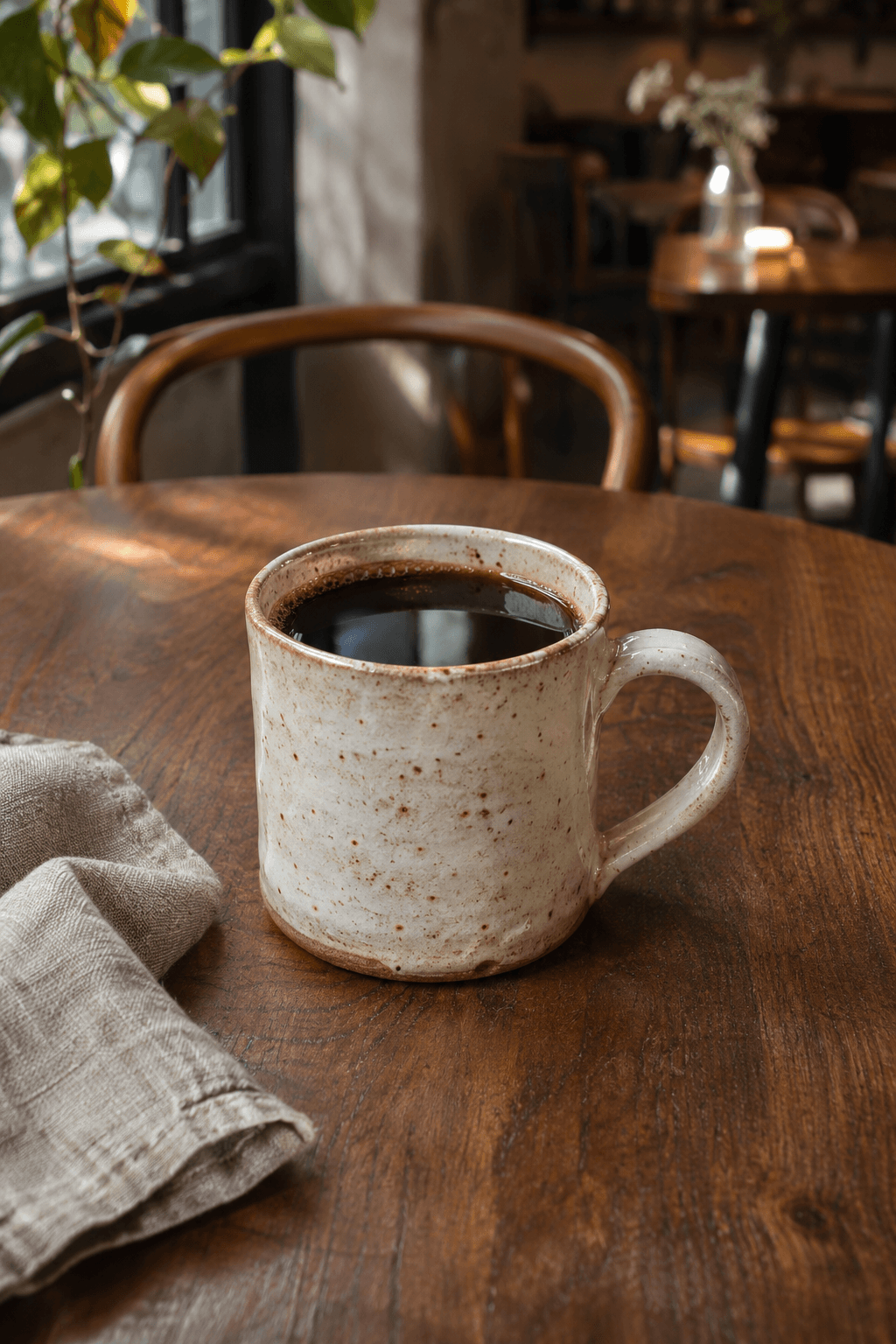
One batch, one target width: 600 px. Every before/after pair uses the same display scale so the size change stays visible.
Prepare product images with a consistent width for your shop. Mixed aspect ratios will still have different heights.
Fit illustrations to the content width of your publishing workflow before adding them to an article or email.
Create smaller working copies for slides or handoffs while keeping your original images separate.
Avoid entering the same dimensions for every file. Review the output dimensions in the results list before downloading.
Automatic height calculation helps avoid stretched subjects when applying one width to landscape and portrait images.
Free resizing does not require an account or upload your images. Downloads are new files, leaving the originals untouched.
Reduce large camera exports when your destination only needs a smaller pixel width.
Apply a common width before a handoff. Enable standard enlargement only if smaller inputs also need to reach that width.
Choose percentage mode when you want each source reduced proportionally rather than forcing every image to the same width.
Yes. The free resizer works without logging in. Each batch supports up to 30 images, with a 20 MB limit per file.
This tool sets width or percentage and preserves the original proportions. Use the crop tool first if you need a particular aspect ratio.
Enlargement is off by default. Enable “Allow standard enlargement” to increase its dimensions. This is ordinary resizing, not AI enhancement.
No. Exporting creates a new encoded image without the original EXIF metadata. JPG output also fills transparent areas with white.
Check the file type and size. Inputs support JPG, PNG and WebP up to 32 megapixels. Outputs also have a 16,384 px per-side limit, and device memory may impose lower limits.